
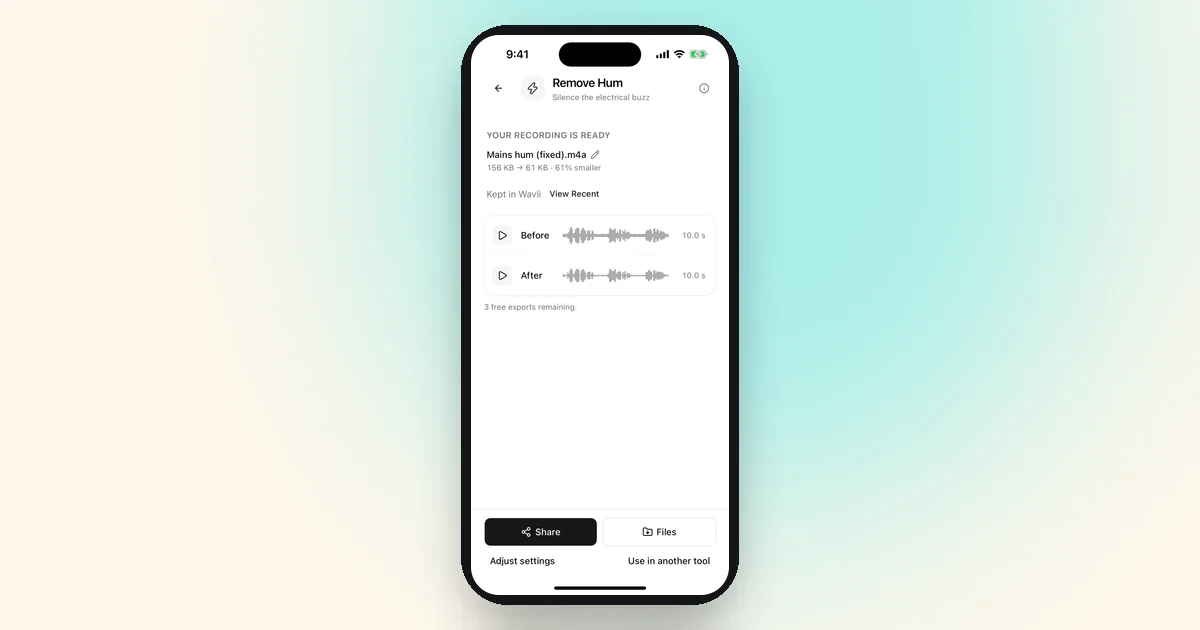
Steady buzz or hum in a recording is usually mains hum, a low tone from mains electricity: 60 Hz in North America and 50 Hz in the UK and most other countries. It needs a narrow filter at that frequency, not general noise reduction. On iPhone, open the recording in Wavli, choose Remove Hum, leave Mains frequency on Auto, preview, and save. On a computer, Audacity’s free Notch Filter does the same job.
Steps checked on the iPhone 16 Simulator: in Wavli 1.2.6 on iOS 26.0, and the result screen again in Wavli 1.2.7 on iOS 26.0.1.
Hum, buzz, or background noise? How to tell
Put on headphones and listen to a pause between words, where nobody is speaking.
| What you hear | Usual cause | What to use |
|---|---|---|
| A low, constant tone that never changes pitch | Mains power: a charger, an amp, lights, or a ground loop | Remove Hum |
| A harsher, buzzier version of that tone | The same hum with strong overtones | Remove Hum (it cuts the overtones too) |
| A whoosh or “shhh” | A fan, air conditioning or a computer | Remove Noise |
| A buzz that comes and goes in bursts | Phone signal interference, loose cables | Neither tool (see the limits below) |
If it’s a whoosh rather than a tone, this is the wrong guide. See removing background noise from a voice memo or, for hiss or static, removing static from a voice memo.
50 Hz or 60 Hz: which one is your hum?
The hum’s pitch follows the power grid where the recording was made. The Audacity Manual’s advice: choose “60 Hz as ‘Frequency’ for North America, or 50 Hz for the United Kingdom and most other countries.”
In Wavli you don’t have to know. Auto measures the energy at 50 Hz and at 60 Hz, plus their overtones, over roughly the first 1.5 seconds of the recording, and picks whichever is stronger. It goes by the sound, not by your iPhone’s region, so a recording made abroad still gets the right setting. Once it has picked one, it fine-tunes to within 1 Hz of the exact pitch, since real hum can sit slightly off 50 or 60 Hz.
Why hum turns into buzz
A pure 50 or 60 Hz hum is a dull, low tone. A buzz is the same hum with overtones: copies of the tone at two, three, four times the frequency and up, so 100, 150, 200 Hz and so on for 50 Hz hum. The stronger the overtones, the harsher it sounds.
Wavli’s Remove Hum is built for that. It cuts the main tone and every overtone below 1 kHz: 19 narrow notches for 50 Hz hum, 16 for 60 Hz. The notch at 50 Hz is about 2.75 Hz wide, and they widen to about 16 Hz near 950 Hz. So it takes out thin slices of the sound, not a whole band, which is why the same tool can remove buzz from audio as well as a plain hum. Anything above 1 kHz is left alone.
Which option fits
- The file is on your iPhone: use Wavli’s Remove Hum (below). It runs on the iPhone, and you can preview before saving anything.
- You’re at a computer and want it free: use Audacity’s Notch Filter.
- The hum only appears while something is charging: fix the cause before your next recording (see “Stop hum at the source”).
Option 1: Remove background hum free in Audacity (Notch Filter)
Audacity is a free audio editor for Mac, Windows, and Linux. Its manual says Notch Filter “sharply attenuates frequency-specific noise like mains hum or electrical whistle with minimal damage to the remaining audio.”
-
Select the audio
Open the file in Audacity and select the part with hum. Select everything if the hum runs through the whole recording.
-
Open Notch Filter
Choose Effect > EQ and Filters > Notch Filter.
-
Enter 50 or 60 Hz
Type 60 or 50 in Frequency and apply. The manual says a Q factor “between 2 and 10 works well for mains hum removal”. Higher Q values make the notch narrower.
-
Repeat for any remaining buzz
If a buzz remains, open Analyze > Plot Spectrum, look for other sharp peaks above the hum, and run Notch Filter again at each one. The manual suggests a higher Q for these overtones, then a mild pass of Noise Reduction for anything left.
There’s no hum tool in Voice Memos. Apple describes Enhance Recording as reducing “background noise and echo when you play Mono and Stereo recordings”. It doesn’t mention hum.
Option 2: Remove hum on iPhone with Wavli
-
Get the recording into Wavli
On Wavli’s Home screen, tap “Choose a recording” and pick one file from Files. Or, in another app, tap Share and tap Wavli in the share sheet. On iOS 26 the share sheet shows it as “Wavli”; the extension itself is called Save to Wavli. The file appears on a “Ready from Share” card. Tap “Choose what to do”.
For a voice memo, open it in Voice Memos, tap More (…), then Share, and tap Wavli (it may show as Save to Wavli). If you edited the memo, choose Rendered under Options first so your edits are included.
For a video, tap Video from Photos on the Home screen and pick it. Remove Hum keeps the picture: Wavli copies the video without re-encoding it, cleans only the sound, and saves an .mp4. If you choose M4A, WAV, MP3, or AIFF under Output format instead, you get the audio only.
-
Choose Remove Hum
On “What would you like to change?”, tap Remove Hum (“Silence the electrical buzz”). You can also open it from the Repair group on the Home screen.
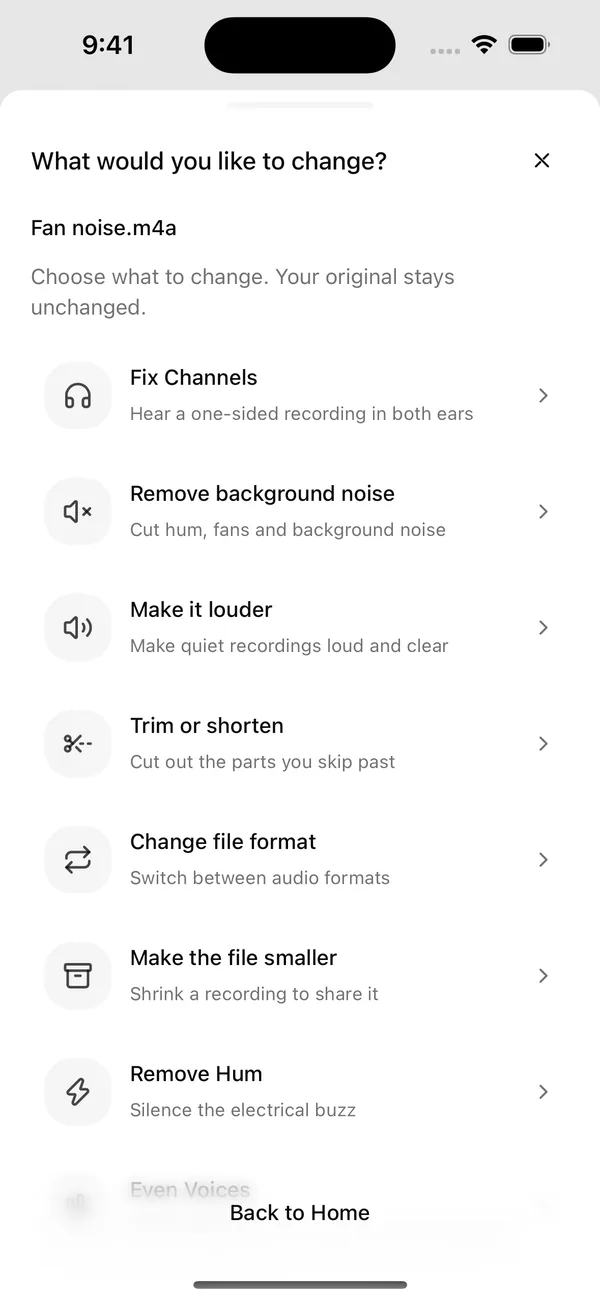
Pick Remove Hum, not Remove background noise. -
Set Mains frequency
Under Mains frequency, leave Auto selected, or tap 50 Hz or 60 Hz if you know where the recording was made.
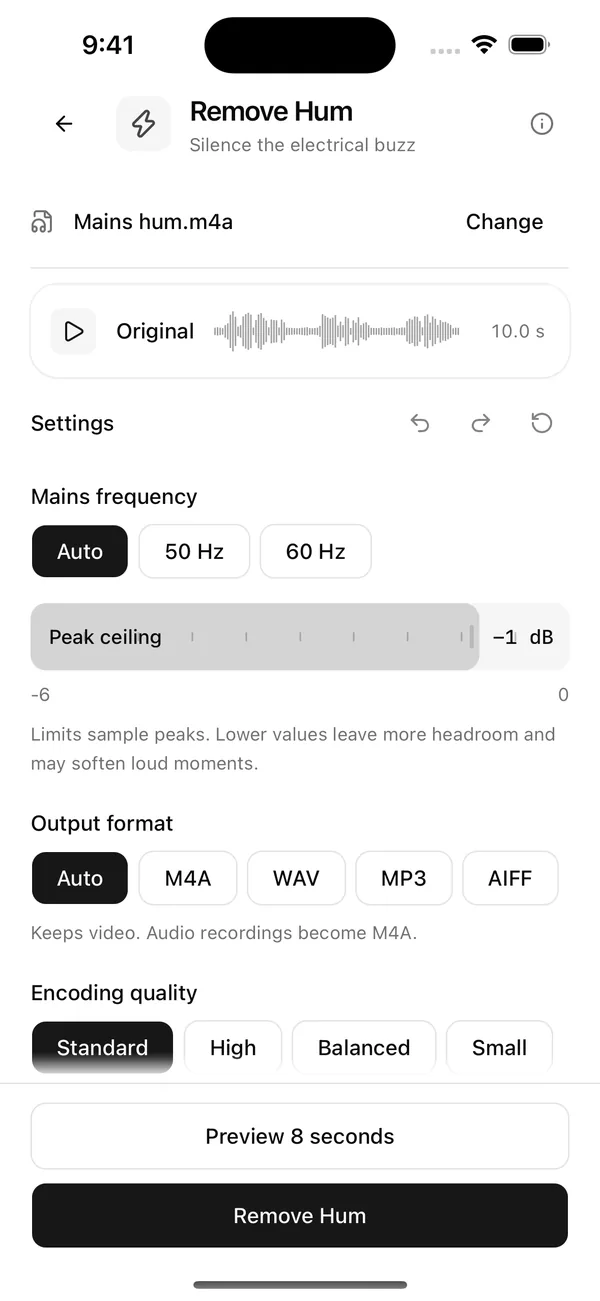
Auto picks 50 or 60 Hz from the sound itself. -
Leave Peak ceiling and Output format as they are
Peak ceiling is set to −1 dB; you can move it from −6 to 0 dB in 0.5 dB steps. Wavli’s note under it reads: “Limits sample peaks. Lower values leave more headroom and may soften loud moments.” Leave Output format on Auto (“Keeps video. Audio recordings become M4A.”) and Encoding quality on Standard unless you need a different file type. For a video, Auto always saves an .mp4.
-
Preview 8 seconds
Tap Preview 8 seconds and listen to the pauses with headphones. The low tone should be gone and the voice should sound the same as before.
-
Remove the hum
Tap Remove Hum. When it’s done, the result screen opens with Before and After players so you can compare. It’s the same result screen as Wavli’s other tools: “YOUR RECORDING IS READY”, the new file name (such as “Mains hum (fixed).m4a”), and the file size before and after. It doesn’t tell you which frequency Auto picked, so judge by ear.
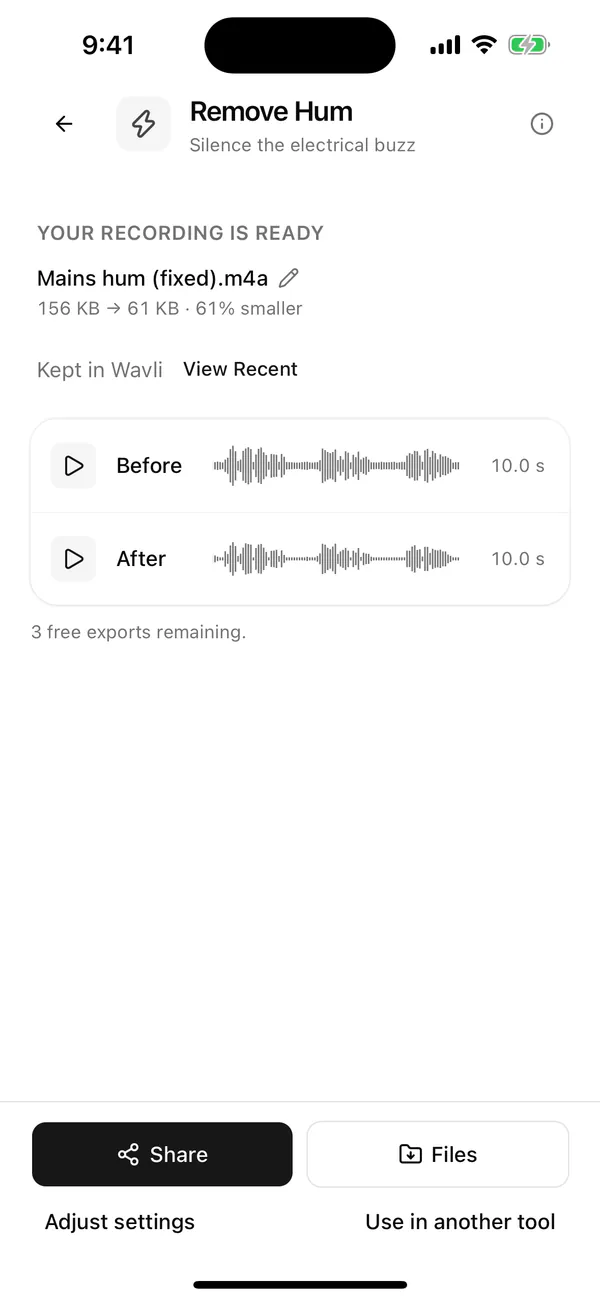
Compare before and after in the pauses. This run used 50 Hz, set by hand.
-
Save or share the file
Tap Share to send the result to another app, or Files to save a copy. For a video, Photos adds the cleaned copy to your library. Every device gets 3 free exports, and the result screen shows how many are left. Each result file counts once, wherever you send it, so saving or renaming the same result again is free. Changing the format, tapping Adjust settings, or running the tool again makes a new file, and that counts as a new export. A cancelled export doesn’t count. After the free exports, saving new files needs Wavli Pro. All tools and previews stay free.
What it sounds like
A · Before
B · After
This is a demonstration clip, not a real-world recording. The speech is a telephone-quality recording, so it sounds narrow in both versions, and the hum was added on purpose. We measured the pair on 2026-10-19 by decoding both files to 8 kHz mono and running a frequency analysis. The 50 Hz peak fell by about 52 dB. In the quietest tenth of 100-millisecond stretches, the overall level fell from −24.3 to −38.6 dBFS, about 14 dB quieter. The overtones went too: the 100 Hz peak fell by about 43 dB and the 150 Hz peak by about 34 dB. That’s one synthetic file, so treat it as an example, not a promise.
If there’s fan or air noise too
Remove the hum first, then the noise. That’s the same order the Audacity Manual uses: notch out the hum, then a mild Noise Reduction pass. In Wavli, tap Use in another tool on the result screen and choose Remove Noise. The hum-free result opens as a new recording, so you don’t have to save it first. Export only the final file and it uses one export; export the in-between file too and it uses two. The Remove Noise steps are in how to clean any audio file for free.
Still hearing it? Troubleshooting
- Auto picked the wrong one, or the hum starts later. Wavli doesn’t show which frequency Auto chose, so if the preview still hums, try the other setting. Auto listens to roughly the first 1.5 seconds. If the hum starts after that, for example when a light or charger turns on, choose 50 Hz or 60 Hz yourself. The demo above was made with 50 Hz set by hand.
- A high-pitched whine is left. Remove Hum stops at 1 kHz, so a whine above that stays. On a computer, find its peak with Audacity’s Plot Spectrum and notch it out.
- Loud moments sound squashed. Move Peak ceiling toward 0 dB. Wavli’s own note says lower values “may soften loud moments”.
- A buzz that comes and goes. Bursts of buzzing, like the sound a phone makes near a speaker when it gets a signal, aren’t steady hum. Remove Hum isn’t built for that.
Stop hum at the source next time
- Unplug the charger. If the hum appears only while the phone or laptop charges, record on battery.
- Run the laptop on battery when an audio interface or mic is plugged into it.
- Swap the cable or adapter. A faulty or unshielded cable is a common source.
- Keep audio cables away from power cables, and don’t let them run alongside each other.
What Remove Hum can’t fix
- Fan noise, air conditioning, a computer. These are steady broadband noise, so use Remove Noise. For video, see background noise in a video.
- Clicks, crackle, and pops. Wavli has no de-click or de-crackle tool.
- Echo and room reverb. Wavli has no echo removal.
- Buzzing that comes and goes, or distortion from a recording that was too loud.
More on the tool itself: Remove Hum.
FAQ
How do I remove hum from a recording on iPhone?
Open the recording in Wavli, choose Remove Hum, leave Mains frequency on Auto, preview 8 seconds, then tap Remove Hum and save the result. The processing runs on the iPhone, and every tool and preview is free.
Should I choose 50 Hz or 60 Hz?
Choose 60 Hz if the recording was made in North America and 50 Hz for the UK and most other countries. If you're not sure, leave Wavli on Auto: it measures both at the start of the recording and picks the stronger one.
Can I remove AC hum from a recording?
Yes, if AC means alternating current: that's mains hum, and Remove Hum is the right tool. If you mean the whoosh of an air conditioner, that's broadband noise, so use Remove Noise instead.
Is there a free way to remove hum?
Yes. Audacity's Notch Filter is free on Mac, Windows, and Linux. On iPhone, Wavli lets you try every tool and preview for free, and each device gets 3 free exports.
Does Wavli upload my recording to remove the hum?
No. Wavli processes audio on your iPhone, so the recording isn't sent to a server.