
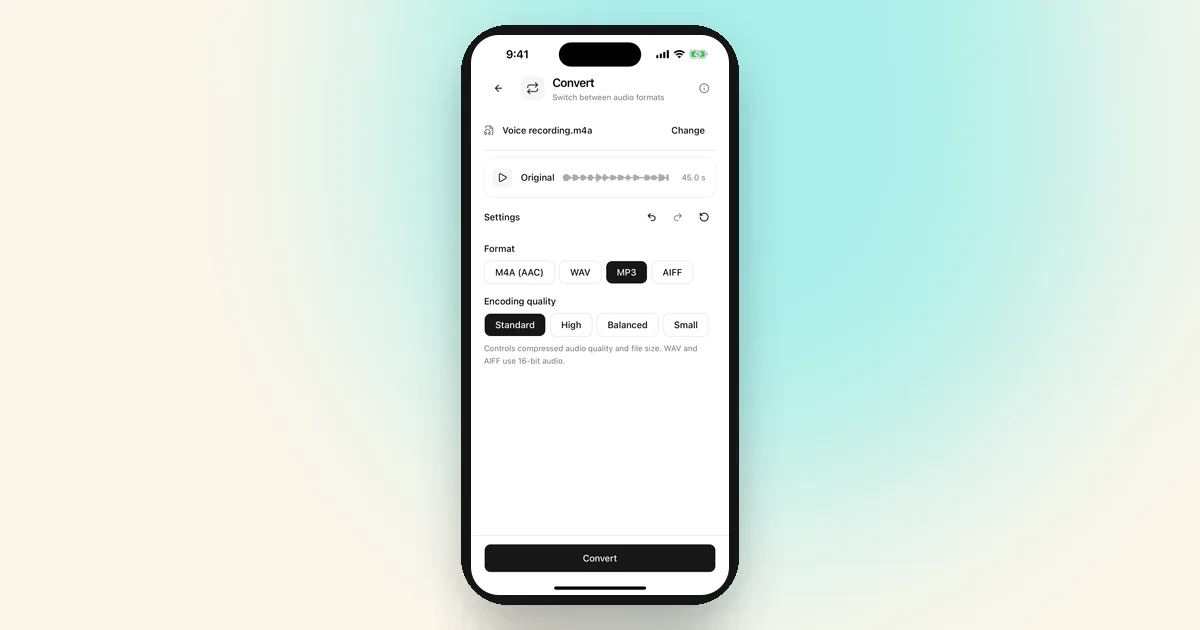
Voice Memos saves recordings as M4A files, and iPhone has no built-in way to export an MP3: neither Voice Memos nor the Shortcuts app offers it. To get an MP3 on iPhone, share the memo to Wavli, choose Change file format, pick MP3, tap Convert, and save it to Files. On a Mac, the Music app does it for free.
Wavli steps checked on the iPhone 16 Simulator and against the app’s code: the Convert, result and batch screens in Wavli 1.2.7 on iOS 26.0.1, and the share sheet and Change file format screens in earlier Wavli 1.2.6 captures on iOS 26.0. The Voice Memos sharing steps follow Apple’s Voice Memos guide and still need a check on a real iPhone.
What format are voice memos, and do you need MP3?
Apple’s guide says recordings “are exported in .m4a format” by default, and sharing a memo as Rendered creates “a single .m4a file with all audio effects and layers mixed in.” Editable instead shares a QuickTime Audio file that, in Apple’s words, “lets a recipient with a compatible device and software update configure effects and layers.” For an MP3, start from the Rendered .m4a.
Plenty of apps and upload forms accept M4A as it is, so before converting, check whether the place you’re sending the memo actually rejects it. You need MP3 when:
- an upload form or podcast host only lists MP3,
- an older car stereo, MP3 player, or Windows program won’t open M4A,
- someone has asked you for an MP3 specifically.
If none of those apply, send the M4A as it is. You skip a step and lose nothing.
Which option fits
- You only have your iPhone: use Wavli’s Convert tool (Option 2). It runs on the phone, and your audio never goes to the cloud.
- The memo also needs cleaning up: pick MP3 as the output format in Wavli’s Remove Noise and do both in one run (see “Clean it up and get an MP3 in one go”).
- You have a Mac nearby: the Music app converts M4A to MP3 for free (Option 1).
- You were looking for a “voice memo to MP3 converter” website: those work, but some upload your file to their server to convert it. Check the site’s privacy terms before you upload a private recording.
Why Shortcuts and the Files app can’t make an MP3
The Files app can move, rename, and share a memo, but it can’t change the format. Renaming “memo.m4a” to “memo.mp3” only changes the name, not the audio inside, and many apps will refuse the file.
In the Shortcuts app, the built-in Encode Media action can save audio only, but MP3 isn’t one of its formats. Wavli adds a Shortcuts action too, “Convert Audio to M4A”, but as the name says, it only makes M4A, so it can’t help here either. (Wavli suggests that action in a tip after you save an M4A; it doesn’t apply to MP3.) For an MP3, use the Convert tool inside the app.
Option 1: Convert a voice memo to MP3 for free on a Mac
Get the memo onto your Mac first: in Voice Memos on iPhone, share it with AirDrop, or save it to iCloud Drive with Save to Files. Then follow Apple’s steps in the Music app.
-
Set Music to import as MP3
In Music, choose Music > Settings, click the Files tab, then click Import Settings. Choose MP3 Encoder from the Import Using pop-up menu, then click OK.
-
Add the memo to Music
Drag the .m4a file from the Finder into the Music window, then select it. Apple suggests looking under Recently Added if you can’t find it.
-
Create the MP3
Choose File > Convert > Create MP3 Version. The MP3 appears in your library next to the original. To find the file itself, select it and choose File > Show in Finder.
If the menu says “Create AAC Version” instead, the import setting from the first step didn’t stick: Apple’s menu item always names the format chosen under Import Using. Music can also convert several selected files at once.
Option 2: Convert a voice memo to MP3 on iPhone with Wavli
-
Send the memo to Wavli
In Voice Memos, tap the recording, tap the More button (…), then tap Share. If you edited the memo and the share sheet shows Options, choose Rendered so your edits are included. Then tap Wavli in the share sheet. Its share extension is called Save to Wavli, so you may see that name instead.
You can also save the memo to Files first (Share → Save to Files), then open Wavli and tap “Choose a recording” to pick it. Wavli opens one file at a time this way. The “From Voice Memos” link on Wavli’s Home screen shows the same steps.
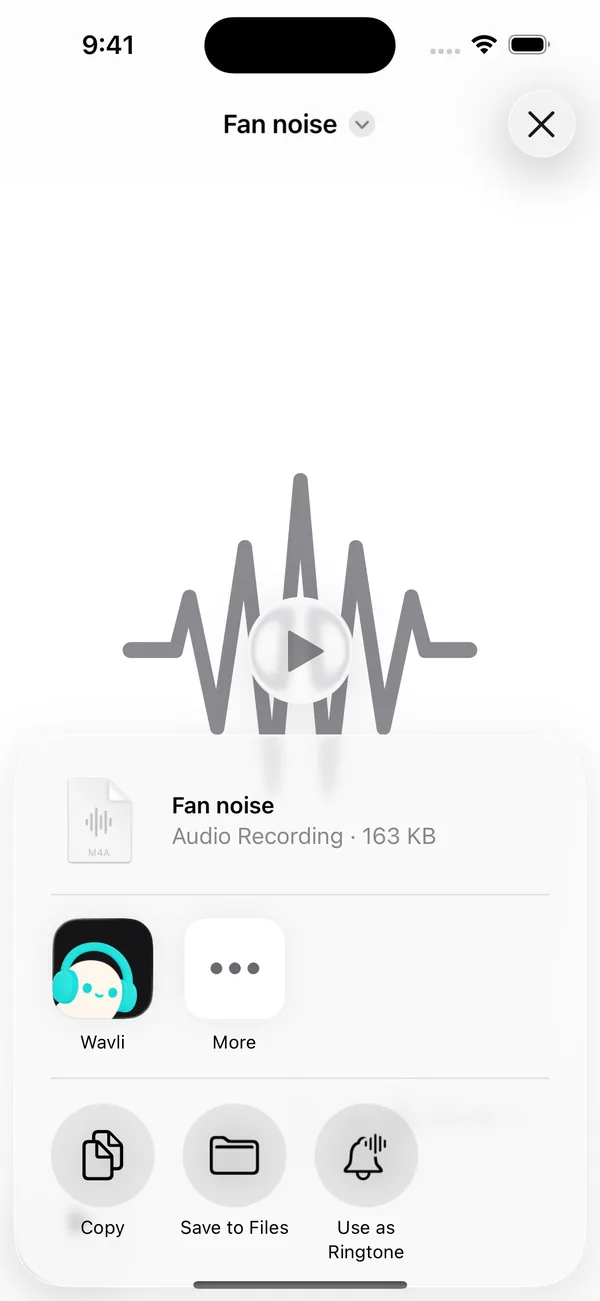
On iOS 26 the share sheet lists the app as Wavli. -
Choose Change file format
Open Wavli. A shared memo waits on the “Ready from Share” card; tap “Choose what to do”. Wavli asks “What would you like to change?”. Tap Change file format (“Switch between audio formats”). This opens the Convert tool, which you can also open from the Formats group on the Home screen.
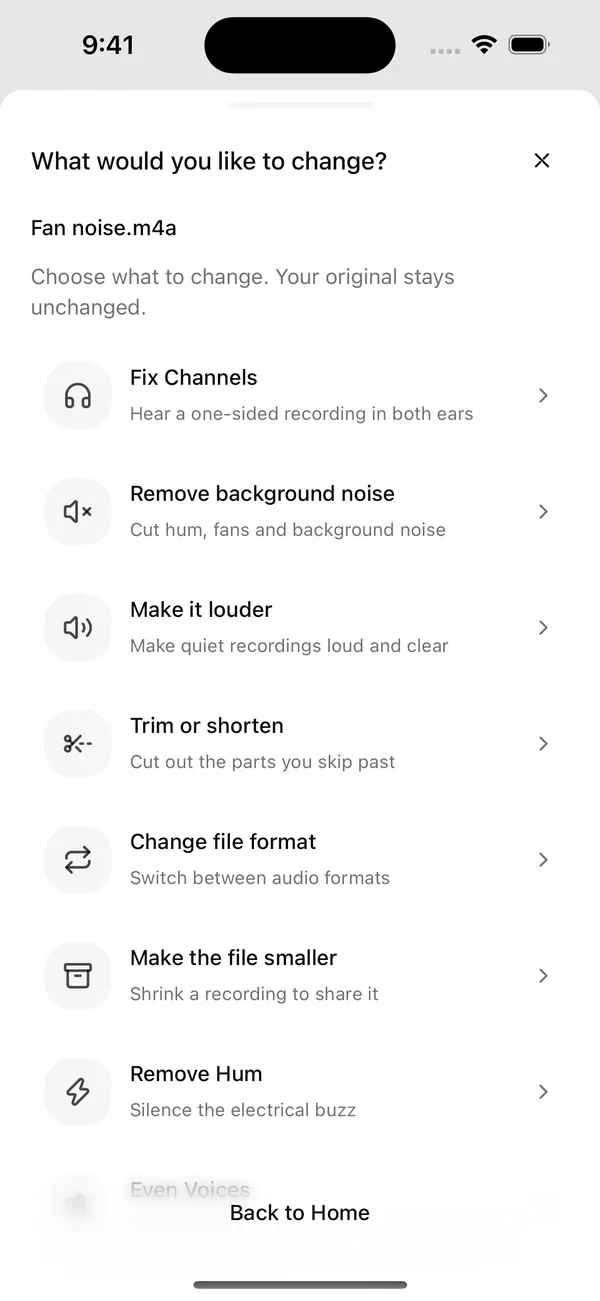
Change file format opens the Convert tool. -
Pick MP3
Under Format, tap MP3. The choices are “M4A (AAC)”, “WAV”, “MP3”, and “AIFF”, and WAV is selected when the screen opens, so don’t skip this step.
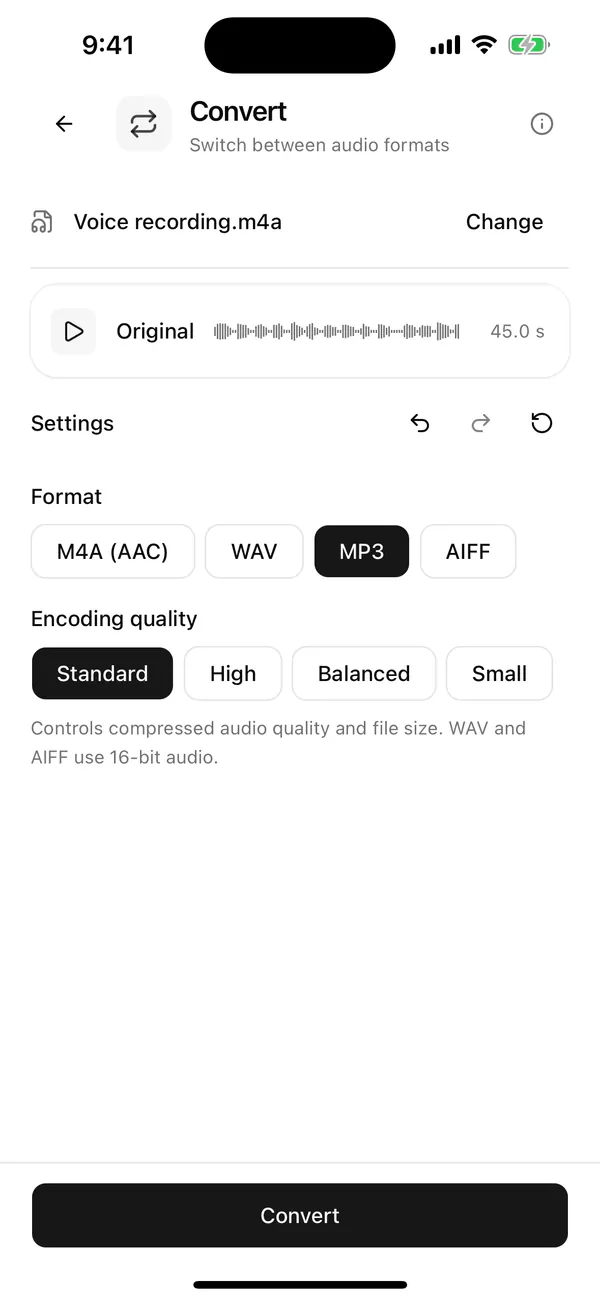
Pick MP3. WAV is the default. -
Choose the Encoding quality
With MP3 selected, Encoding quality appears: Standard, High, Balanced, and Small. Wavli’s note says it “controls compressed audio quality and file size.” Standard suits most voice memos. The table below shows what each one means.
-
Tap Convert
Tap Convert. When it finishes, the result screen opens with the heading “YOUR RECORDING IS READY” and the new file’s name: Wavli adds “(fixed)” to the original name, so “Voice recording.m4a” becomes “Voice recording (fixed).mp3”. Below it, a size line compares the two files and says how much smaller or larger the MP3 is, and Before and After players let you check the MP3 by ear.
The MP3 can come out smaller or larger than the memo. In the screenshot below, a 45-second test recording went from 3.0 MB to 1.0 MB (“66% smaller”) at Standard. A small, heavily compressed M4A can grow instead, because Standard encodes at 192 kbps and MP3 needs a higher bitrate than AAC for similar quality. If the MP3 is bigger than you want, pick Balanced (160 kbps) or Small (96 kbps).
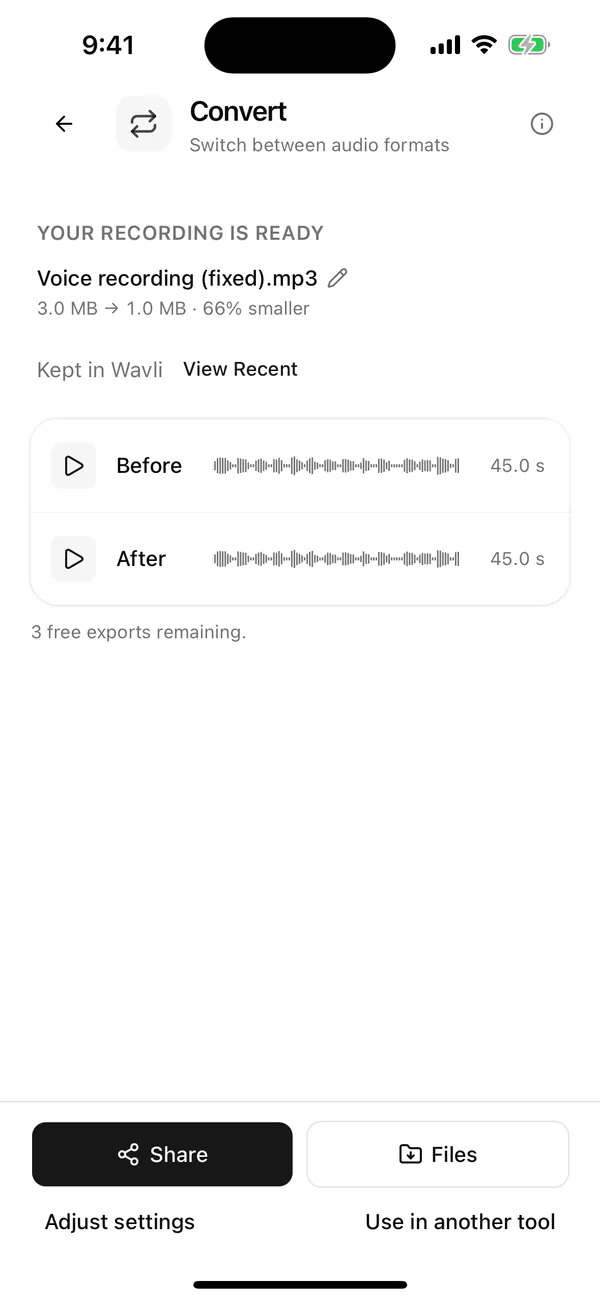
The MP3 keeps the memo's name, with (fixed) added.
-
Save the MP3
Tap Files to save the MP3 to a folder you choose in the Files app, or Share to send it straight to Mail, Messages, or an upload form. The result is also kept in Wavli: the screen says “Kept in Wavli”, and “View Recent” opens your History. Your original memo stays unchanged in Voice Memos. If the MP3 isn’t right, tap Adjust settings to change the quality and convert again.
Every device gets 3 free exports, and the result screen shows how many are left (“… free exports remaining.”). Each result file counts once, wherever you send it. Saving the same MP3 again is free. Converting to a different format or quality makes a new file, which counts as a new export. After the free exports, saving new files needs Wavli Pro. The tools themselves stay free.
Convert several voice memos to MP3 at once
The share sheet and the “Choose a recording” button on Home take one file at a time. To convert a batch, start from the tool instead:
-
Save the memos to Files
In Voice Memos, tap Select above the list, select the memos, tap Share, then tap Save to Files and pick a folder.
-
Open Convert from the Home screen
In Wavli, tap the Convert tile in the Formats group. It opens the tool with no file loaded.
-
Pick all the memos
Tap “Choose a recording” and select the memos in that Files folder. You can pick several here, and Wavli confirms the count with a line such as “3 files — the same settings run on each.” The screen also shows “Change files” and “Last used settings”.
-
Pick MP3 and convert
Set Format to MP3, choose the Encoding quality, and tap Convert. Every memo gets the same settings.
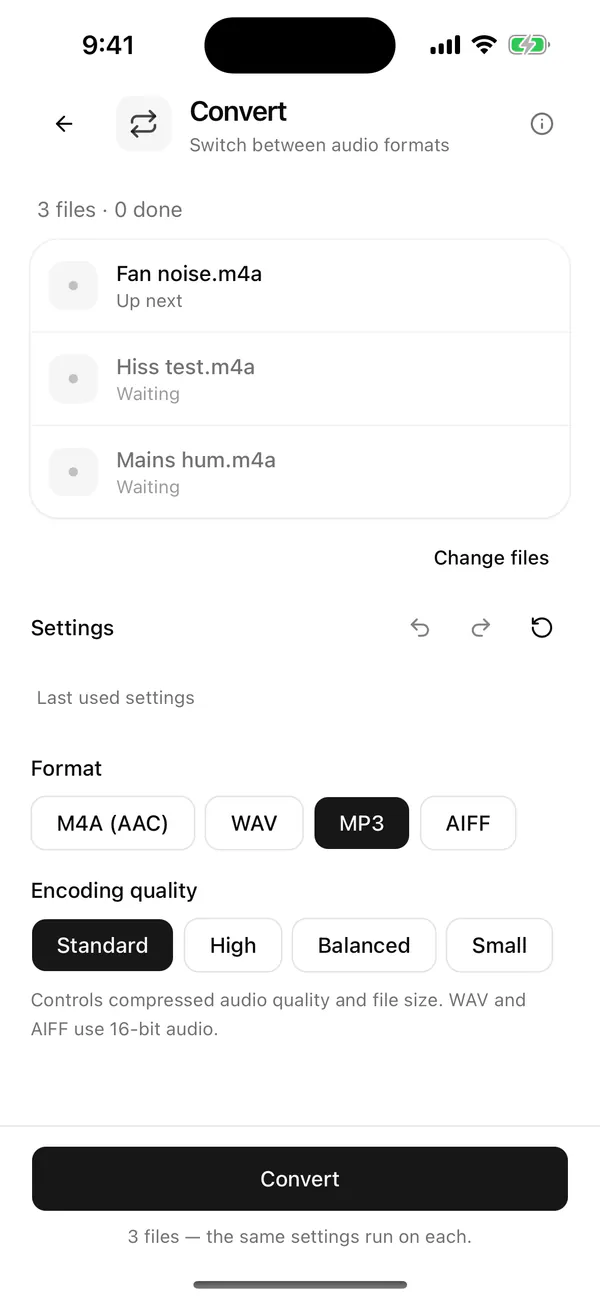
Each converted file is a separate export, so three memos use all 3 free exports, and saving more than that needs Wavli Pro.
Which MP3 quality to pick
Wavli encodes MP3 at a constant bitrate, so the file size depends only on the length of the memo. The sizes below are worked out from the bitrate (bitrate × 60 seconds ÷ 8), before a small amount of file overhead.
| Encoding quality | MP3 bitrate | About per minute | Use it for |
|---|---|---|---|
| High | 256 kbps | 1.9 MB | Music ideas, or audio you’ll edit and re-export |
| Standard | 192 kbps | 1.4 MB | Most voice memos |
| Balanced | 160 kbps | 1.2 MB | Long talks or lectures |
| Small | 96 kbps | 0.7 MB | Email attachments or upload forms with a size limit |
The buttons aren’t in size order: Balanced (160 kbps) makes a smaller file than Standard (192 kbps). For a 10-minute lecture, Standard works out to about 14 MB and Small to about 7 MB.
Clean it up and get an MP3 in one go
If the memo has steady noise from a fan, air conditioning or a computer, you don’t need to convert it separately. Open Remove background noise instead of Change file format, set the Strength, and under Output format tap MP3 before you tap Remove Noise. You get a cleaned MP3 in one run and one export. The full steps are in how to remove background noise from a voice memo, and for hiss or static see removing static from a voice memo.
If you’ve already cleaned the memo, tap Use in another tool on the result screen and pick Convert. Export only the final MP3 and it uses one export; export the in-between file too and it uses two.
Check the MP3
- You can’t find the file. Open the Files app and check the folder you picked, or use Recents. Searching for “(fixed)” finds every file Wavli saved. Wavli also keeps results in its History (the clock icon on the Home screen).
- Wavli isn’t in the share sheet. Scroll to the end of the row of apps and tap More. On iOS 26 it’s listed as “Wavli”, not “Save to Wavli”.
- The memo sounds flatter than in Voice Memos. Apple says exported recordings are flattened and “Spatial Audio becomes stereo”. That happens when the memo leaves Voice Memos, before Wavli touches it.
- A voice note from a messaging app won’t open. Opus and Ogg files, the format some messaging apps use for voice notes, aren’t supported in Wavli.
- The MP3 is too big to attach. Convert again with Small (96 kbps), or trim the silence first with Wavli’s Trim Silence.
What converting can’t do
- Improve the sound. M4A and MP3 are both compressed formats. Apple’s own note on conversion: “If you compress a song and it loses data, you can’t uncompress it to retrieve the data.” Converting can only keep or lose detail, never add it. Keep the original memo.
- Keep a lossless recording lossless. If your memos are recorded in lossless quality, converting to MP3 makes them lossy again. Pick WAV or AIFF in Convert if you need an uncompressed file (Wavli writes them as 16-bit audio, up to 48 kHz).
- Fix noise, hum, or a quiet recording. That’s a separate step. See removing hum or buzz from a recording or cleaning any audio file for free on iPhone.
More on every format Wavli opens and saves: Import and export.
FAQ
Can iPhone convert a voice memo to MP3 without an app?
No. Voice Memos exports recordings as M4A, and the Shortcuts app's built-in Encode Media action doesn't offer MP3. To get an MP3 you need a converter app such as Wavli, a Mac with the Music app, or a website.
Is there a free way to convert a voice memo to MP3?
Yes, on a Mac: the Music app can create an MP3 version of any M4A file for free. On iPhone, Wavli's Convert tool is free to try, and every device gets 3 free exports before Wavli Pro is needed.
Does converting a voice memo to MP3 lower the quality?
It can't make it better, and it may lose a little detail, because M4A and MP3 are both compressed formats. Keep the original memo, and pick a higher Encoding quality in Wavli if the MP3 is for editing or publishing.
Where does the MP3 go after I convert it?
It goes wherever you send it from Wavli's result screen. Tap Files to save it to a folder in the Files app, or Share to send it straight to Mail, Messages, or another app.
Does Wavli upload my voice memo to convert it?
No. Wavli converts the file on your iPhone, so the memo isn't sent to a server.
Sources
- [1]Apple Support: Export a Voice Memos recording to Files on iPhone
- [2]Apple Support: Share a recording in Voice Memos on iPhone
- [3]Apple Support: Convert an M4A file to MP3 on Mac
- [4]Apple Support: Convert a song to a different file format on your Mac with the Apple Music app
- [5]ScPL action reference: Encode Media (Shortcuts parameters)